
| Contents | |
| 1. | Default SharePoint Site |
| 2. | Configuring Paths to Sub-Sites |
| 3. | Complex Paths |
| 4. | Obtaining a List of Start Locations |
Default SharePoint Site
When creating a new SharePoint Online data source, the most basic path is simply the root URL of the SharePoint tenant. For example:
https://mycompany.sharepoint.com/
This will allow discovery of all document libraries that are children of the parent tenant.
Note - Discoveries made on the default SharePoint site will only find objects and containers belonging to that site. If discoveries are required for sub-sites, separate data paths should be added to the inventory. See the Configuring Paths to Sub-Sites section for more details.
It is also possible to add a data source path directly to a document library. For example, going directly to the 'Sensitive Data' library of the parent tenant, the path would be formed thus:
https://mycompany/Sensitive%20Data
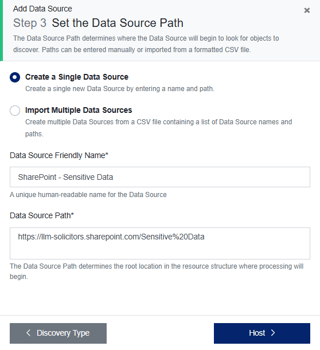
Note - Where there is a space in a library name, the appropriate encoding should be used. For example, 'Sensitive Data' would become 'Sensitive%20Data', where '%20' represents the space.
Configuring Paths to Sub-Sites
If your SharePoint tenant has multiple sub-sites, paths can be set up directly to them.
An example of this may be drilling down to a particular SharePoint site, for example:
https://<mycompany>.sharepoint.com/sites/<mysitename>
Site paths to document libraries can also be constructed as they are for the parent tenant. For example:
https://mycompany.sharepoint.com/sites/mysitename/documentlibrary
To build a path to the ‘Deposition Documents’ library within the ‘Corporate Matters’ sub-site, use the highlighted portion of the SharePoint URL shown in your browser:
Complex Paths
The recommendation is that data source paths go no lower than document library level. Although it is possible to create paths to sub-folders of document libraries, they become complicated to ascertain from the SharePoint tenant's URL.
For example, we wish to create a data source path directly to a folder that is a folder within the Deposition Documents document library. The friendly path would look similar to:
Corporate Matters > Deposition Documents > Verified Identification > Passports
The SharePoint URL for this would appear as follows:
https://mycompany.sharepoint.com/sites/CorporateMatters/Deposition%20Documents/Forms/AllItems.aspx?id=%2Fsites%2FCorporateMatters%2FDeposition%20Documents%2FVerified
%20Identification%2FPassports&viewid=9014d0aa-1e6c-4f37-bce1-e766daafd522&newTargetListUrl=%2Fsites%2FCorporateMatters%2FDeposition%20Documents&viewpath=%2Fsites%2FCorporateMatters%2FDeposition%20Documents%2FForms%2FAllItems%2Easpx
To construct a data source path from this URL, first you would need the basic URL to the site and document library:
https://mycompany.sharepoint.com/sites/CorporateMatters/Deposition%20Documents
Then concatenate the sub-folder structure:
%2FVerified%20Identification%2FPassports
Note - Forward slashes are HTML encoded by SharePoint as %2F. These can either be left as is or replaced with /.
The final URL to use as the data path would then be like this: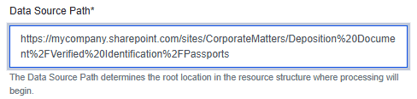
Obtaining a List of Start Locations
A list of all SharePoint site collection URLs can be exported from the SharePoint Admin Centre as mentioned in the Microsoft article here . The export file can then be used as a basis for a bulk data path import file. For further information on bulk importing data paths, please see the knowledgebase article here.