
This article provides guidance for Box administrators on creating a custom app in Box and then adding credentials in ActiveNav Cloud. Once completed, it will then be possible to set-up and run Box data sources discoveries.
Set Up Platform App in Box
1. Log into Box and proceed to the Developer Console.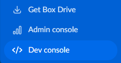 2. Click on Platform Apps from the left-hand pane.
3. Click the Create Platform App button. 
4. From the app types, select Custom App.
5. In Step 1 of the Create Custom App dialog, enter the following values:
- Name: Enter an appropriate name of your choice.
- Purpose: Integration.
- Categories: Security and Compliance.
- Enter AN Cloud for the external system.
6. Click Next
7. Select Server Authentication (with JWT).
8. Click Create App.
9. On your app's Configuration tab, scroll down to the App Access Level section and select App + Enterprise Access.
10. In the Application Scopes section, ensure only the following are ticked:
- Read all files and folders.
- Write all files and folders (this is required for download).
- Manage users (required for data source discovery and for verifying that user exists in normal discovery).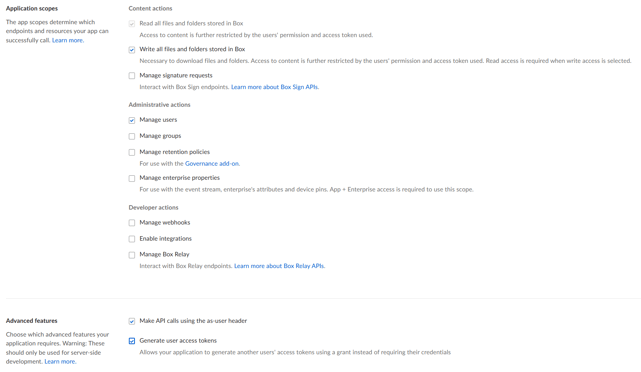
11. In the Advance features section, tick both options.
IMPORTANT - Click the Save Changes button before continuing.
12. In the Add and manage public keys section, click the Generate a Public/Private Keypair button.
- Enter the MFA details as required.
- Scroll back to 'Add and manage public keys' sections and press the 'Generate a Public/Private Keypair' button again.
- Ensure config file is downloaded and saved.
- Click OK to message window.
IMPORTANT - The config file cannot be downloaded again, so store it in a secure location as it is required to create the Box credentials in ActiveNav Cloud.
13. Go to the Authorization tab and click Review and Submit.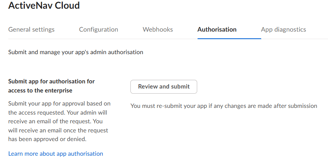
14. Enter an app description and press Submit.
- Your Box tenant administrators will receive an email with the authorization request.
- The link in the email will take them directly to the decision screen.
- The authorization request can also be found in the Box Admin console then Integrations -> Platform Apps Manager . The application should be listed with Pending Authorization status. 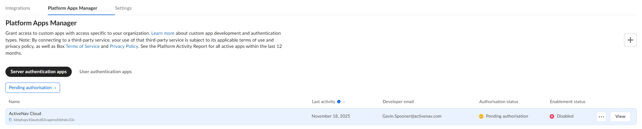
15. View the application and click the Authorize button.
The app is now ready to use.
Creating Box Credentials in ActiveNav Cloud
- In ActiveNav Cloud, navigate to System > Credentials.
- Click the Add Credentials button.
- From the Credentials Type dropdown, select Box JWT.
- Give the credentials an appropriate name and optionally, a description.
- Click Choose File and select the JSON config file that was downloaded when the Box app was created.
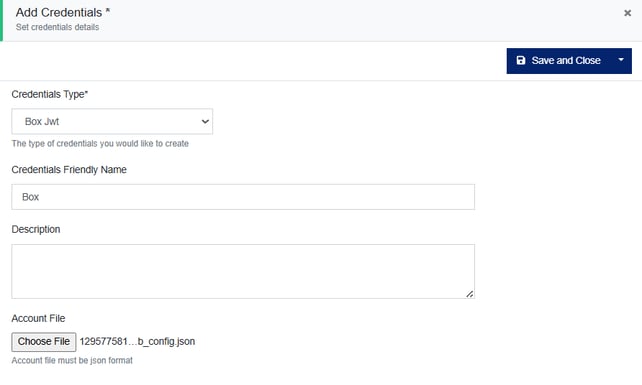
- Click Save and Close.
The Box credentials will now be ready for use in data source discoveries.