
Introduction
This article will guide you through the specifics of creating data source paths for Box integration. For a general guide to setting up a new data source, please refer to How to Create a Data Source.
Constructing a Valid Data Path
Data paths for Box are hierarchical and, at the most basic level, will be targeting a user's individual Box account.
The elements of a basic data path are typically:
<hostname>/<user-id>
An example of this path would be:
boxhost/41851561819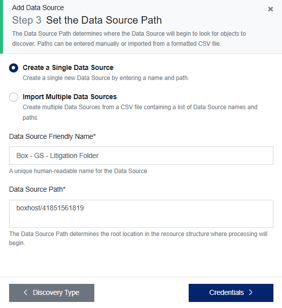
User IDs can be viewed on the Managed Users tab under Users & Groups in the Box Admin Console.
Note - Only active users can be discovered. Attempting to discover an inactive user will result in a failure.
Advanced Data Source Paths
If the data source path is required to target a particular folder in a user’s account, the hierarchical model needs to be followed. Paths would be constructed in a form similar to this:
<hostname>/<user-id>/<folder-id>/<child-folder-id>
An example of this path would be:
boxhost/41851561819/318316897617/318317631738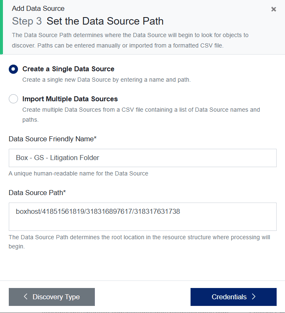
Folder IDs are the numbers which are the last element of a target folder's URL. For example:
https://app.box.com/folder/318317631738
Automated Data Source Discovery
Box has been added to the repository types that support automated data source discovery and will generate a candidate Data Source for each active user found in the Box tenancy.
For more information on automated data source discoveries, please read this article - Automated Data Source Discovery.
Shared Folders
Shared folders are only discoverable on the owner's Box account. For discoveries on any collaborators' accounts, the shared folder would be skipped.