
Custom tags offer a powerful way to categorize data sources, making it easier to manage and maintain your data source catalog. 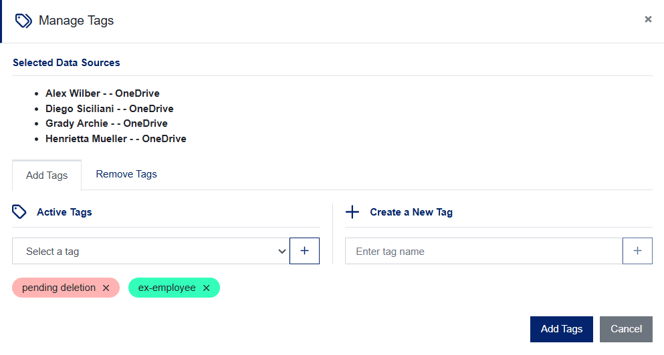 Tags are fully configurable by users and up to 20 tags can be assigned to each data source. There are various methods of adding data source tags as outlined below.
Adding Tags in Discovery Management
Data source tags can be created or added to and removed from existing data sources from within Discovery Management. This is achieved by selecting one or more data sources using checkboxes, then using the Edit Tags button in the Actions menu:
Add Active Tags
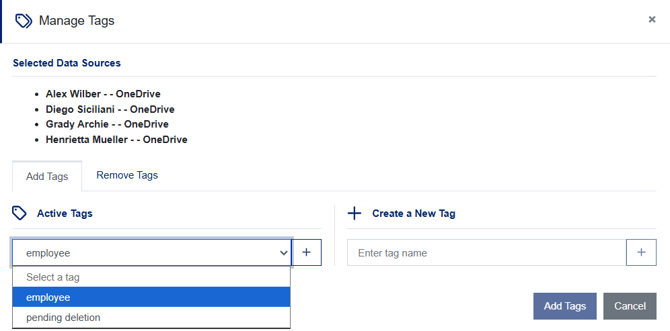 To add tags to the selected data sources from the existing list, open the Active Tags dropdown, select the desired tag, then click the + button. Click on the Add Tags button to confirm your choices.
Create and Apply Tags
 To create and apply a new tag, type in the Create a New Tag text box and click the + button. This will make the new tag active and apply it to the selected data sources. Click on the Add Tags button to confirm your choices.
Removing Tags
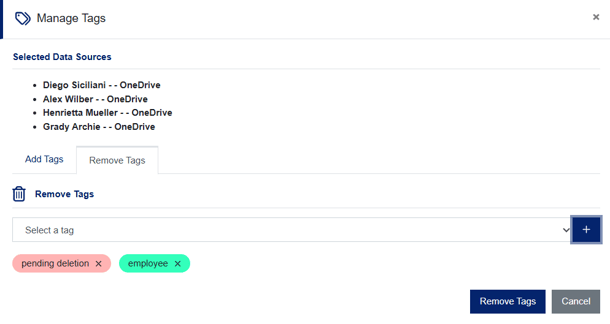 To remove tags from the selected data sources, go to the Remove Tags tab, open the dropdown, select the tag to remove, then click the + button. Click the Remove Tags button to confirm the removal.
Add Data Source
As you progress through the Add Data Source wizard, you will reach Step 9 Add Tags. 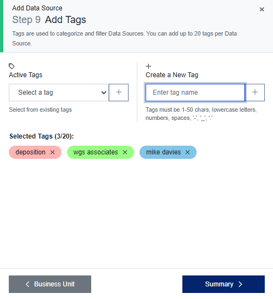 On this step, you can either create new tags to apply to this data source or select an existing tag from the Active Tags dropdown. When creating or selecting a tag, be sure to click the + button to apply the tag to the data source.
Bulk Importing with New Data Sources
Tags can also be assigned when bulk importing data sources via CSV file. This can be achieved by adding a Tags column to the import file. Single or multiple tags can then be added against each data source:  Multiple tags should be separated with a pipe character, for example admin|it|backups. If the tags do not currently exist, they will be created automatically:
Note - Creating, adding, or removing multiple tags can be done in one go using the methods above.
Bulk Importing Tags to Existing Data Sources
Existing data sources can also have tags added en masse by importing a suitable CSV file with columns for the data path and the tag. 
Bulk importing tags can be done by clicking the Bulk Tag Import button on the main Discovery Management dashboard. This will open the Bulk Tag Import dialog.
 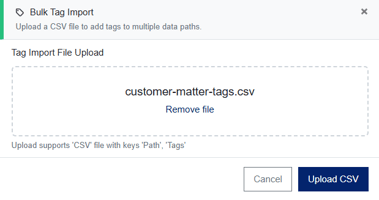 Select your file, then click Upload CSV. The file will then be validated and if it passes, a success message will be displayed. That status of the import can then be track from the Bulk Results page.
Filtering by Tags in Discovery Management
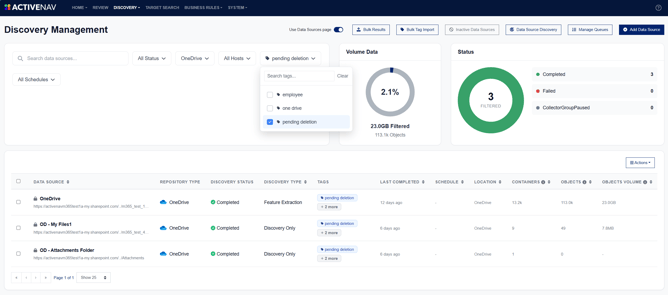 Data sources in Discovery Management can be filtered by one or more tags. Open the All Tags dropdown and select the required tags to apply the filtering.
Note - When multiple tags are selected, they are combined using an OR condition, so the results will include any data sources that contain at least one of the selected tags.