
The Insights Builder enables the construction of powerful, custom queries, allowing targeted analysis of your data inventory. It is accessed from the Insights Dashboard .
.
Available for three different report contexts - Data Profile, Scoring and Classification - filter widgets can be added to your query to focus on specific data under review. 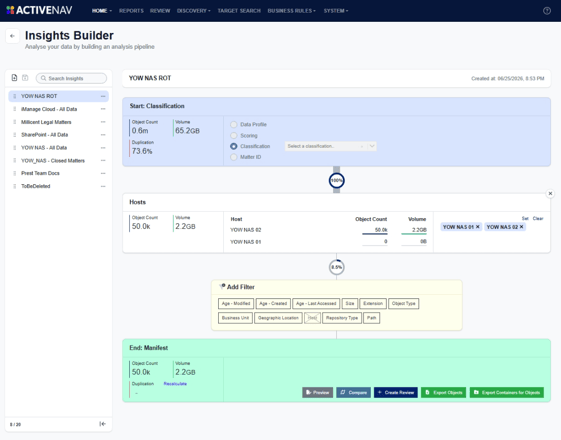
Each user can store up to 20 saved Insights, providing quick access to frequently used insights. Please see the Saving Insights section below for more information.
Note - If a target was previously applied in the Insights Dashboard, the corresponding filter will be automatically applied to the Insights Builder.
Constructing Insights
To begin, select a context from the available options: Data Profile, Scoring, or Classification in the Start node. If you select Scoring or Classification, you can further narrow the query context by choosing a rule from the dropdown. As different contexts are applied, the Object Count and Volume will update to reflect the change.
Add a category from the Add Filter widget to start refining the query results. 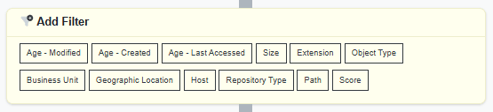 After adding a filter widget, select the desired filter criteria. The layout of these criteria may vary, but each will always include checkboxes for selection.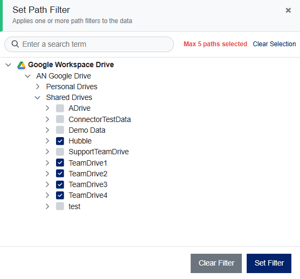
Once multiple widgets have been added, they can be reordered using the ⬆️ or ⬇️ controls.
Widgets can be removed from the query by clicking the X button.
As the dataset is narrowed down, Object Count and Volume will update in the End node. To update the Duplication calculation, click Recalculate.
Available Filters
A comprehensive set of filters is provided, with certain options appearing only when relevant to the selected context. When a filter has been added to the query, it will be shown as unavailable in the filter list: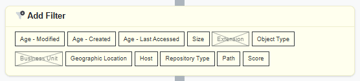
Available filters are:
- Age - Modified - Choose from list of default or custom age ranges, or define an ad-hoc date range based on when objects were last modified.
- Age - Created - Choose from list of default or custom age ranges, or define an ad-hoc date range based on when objects were created.
- Age - Last Accessed - Choose from list of default or custom age ranges, or define an ad-hoc date range based on when objects were last accessed
- Size - Sizes of objects ranging from 0b to > 1GB.
- Extension - A list of file extensions derived from the objects in your data inventory.
- Object Type - The list of ActiveNav Cloud object type categorizations, for example page layout, spreadsheet, text, etc.
- Business Unit - The list of business units belonging to the tenant.
- Geographic Location - A list of your geos derived from the tenant's host locations.
- Host - The hosts of the data sources.
- Repository Type - The list of ActiveNav Cloud repositories such as Windows File Share, Exchange, OneDrive, etc.
- Path - Select from the human-readable paths of the tenant's data sources and containers.
- Score (scoring context only) - Allows a selection of scores of feature-extracted objects using a sliding range.
Reporting
The End node contains the available reporting options.
- Preview - Generates a validation report displaying the first 1,000 objects in the result set.
- Compare - Allows users to create a comparison between two Saved Insights.
- Create Review - Allows users to create a collaborative Scoped Review from the result set.
- Export Objects - Downloads a CSV manifest of objects from the result set.
- Export Containers for Objects - Downloads a CSV manifest of object containers from the result set.
Caution - Objects and Container for Objects export manifests are currently limited to 1 million records.
For a guide on viewing CSV data in Excel, please see the knowledgebase article here.
Saving Insights
Each user can save up to 20 unique insights, providing quick access to previously generated queries.
To create one, click the New Insight button and build the required query as described above by adding filters and parameters.  When you’re finished, you can rename the insight from its menu.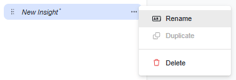
To retain the insight for future use, click the save icon. Insights can also be duplicated to use as the basis for new queries, and re-ordered into a bespoke list for even faster access to frequently used Insights.
Duplicate Comparison
The Compare button at the bottom of the Insights Builder provides you with a report that identifies duplicates in the results of the current Insight with the results of a Saved Insight.
For example, if you are planning to migrate from Windows File Share to iManage Cloud, you probably want to omit objects that already exist in the target location.
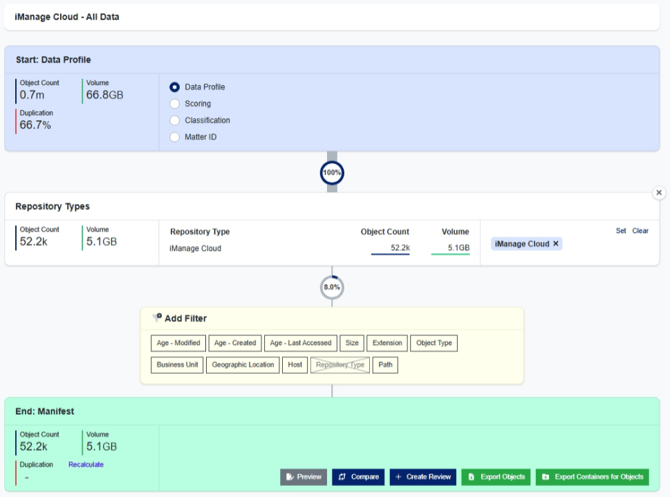
First, create a Saved Insight for the target location using Data Profile.
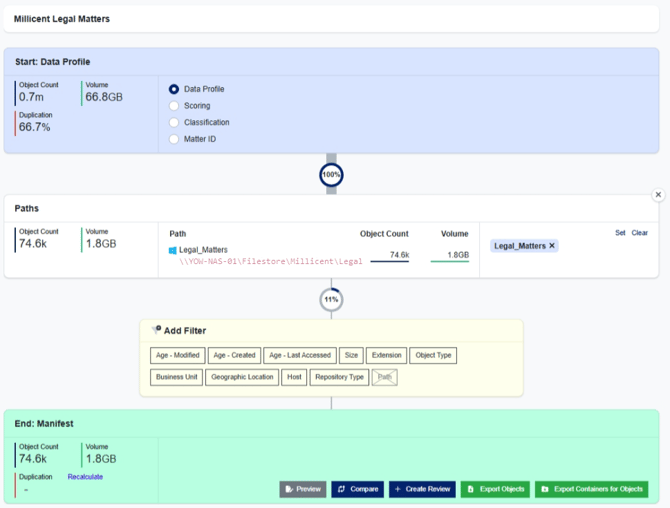
Then create another Data Profile Saved Insight for the source location.
In the Insights Builder End node, click the Compare button.

You will be presented with the Compare screen.
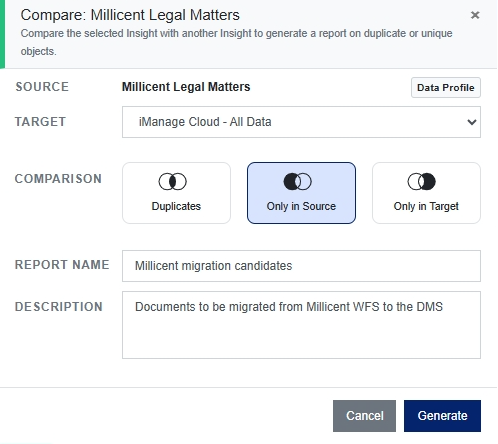
From the Target drop down, choose your target Saved Insight.
Choose the type of report:
|
|
The Duplicates option returns only the objects in the Source that have duplicates identified in the Target. |
|
|
Only in Source returns objects that are unique to the Source. This may include objects that are duplicated within the Source. |
|
|
Only in Target returns objects that are unique to the Target. |
Provide a Report Name and click the Generate button.
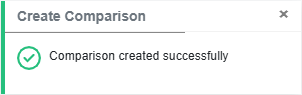
Once the background task is launched, a notification will appear in the UI.
On the Reports page, you will see a list of reports and their basic details. The initial status of your report will be set to Running.
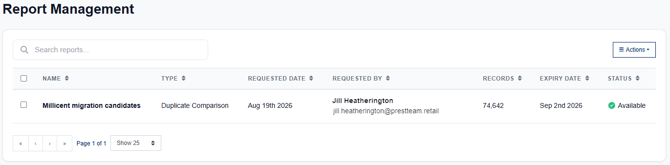
Once your report is generated, you will receive an automated 'Report Available' email notification. Then you can view the report details by clicking on it in the list.
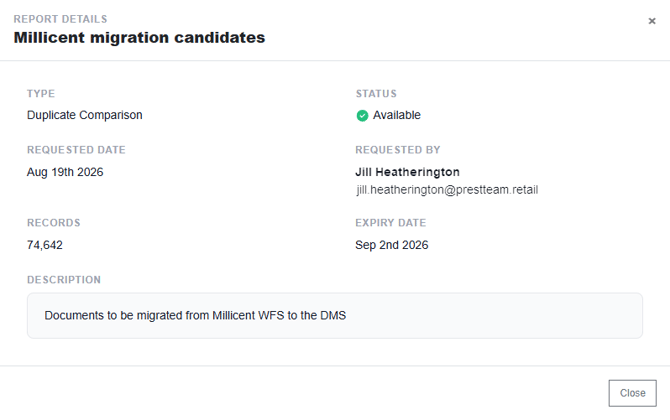
Selecting a report from the list allows you to use the Actions menu, so you can Download or Delete your report. Reports remain in you ActiveNav Cloud tenant for 14 days from the date they are created, after which they are deleted.
A Duplicate Comparison report includes a list of objects returned by your query in a CSV file and a JSON sidecar file. The sidecar file includes details about the number of object rows included in the CSV, report name, description, scope summary and the source and target filters.
Duplicate Comparison CSV reports include the following object details:
Path, Container, Name, Size, Extension, Owner, Date Created UTC, Date Modified UTC, Date Last Accessed UTC, Object Type, Hierarchy Level, Readable Path, Business Unit, Host, Geographic Location, Repository Type, Duplicate ID, aSource or Target Dataset