
What is MatterID?
Using information from your billing system about your matters, ActiveNav Cloud builds a set of classifiers to identify which documents in your inventory are related to client matters. All data sources that are set for Metadata Analysis or Content Analysis will be processed for matter identification.
Preparation
Working with ActiveNav services team, using the MatterID Workbook (available here) identify the properties of matters that are important in your organization. Collect the relevant data about your matters into a comma-separated value file (CSV).
Matter Properties Configuration
In ActiveNav Cloud, select the Business Rules > MatterID > Properties command to open the page that allows you to upload your completed MatterID Workbook.
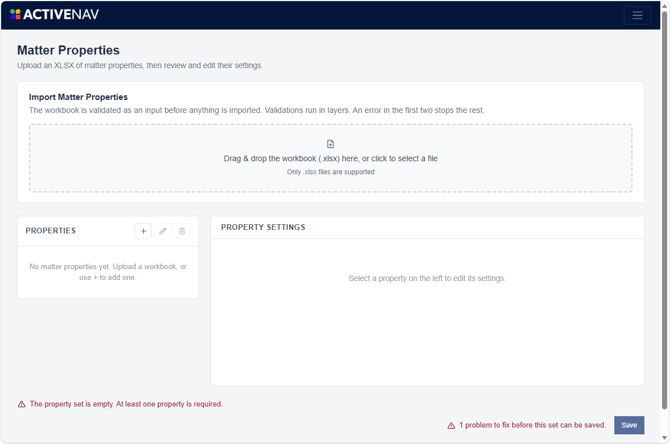
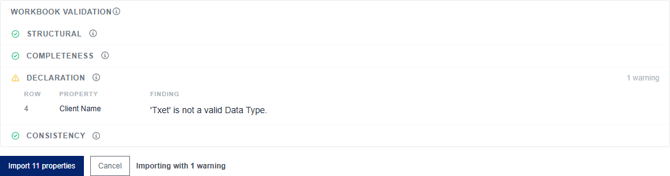
The platform performs a staged validation of the workbook as it is uploaded and identifies errors and warnings.
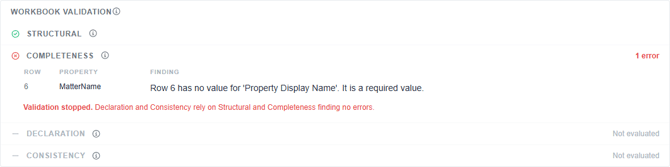
Note - Errors must be corrected before the workbook can be imported to ActiveNav Cloud.
Note - Although warnings are informational and do not prevent importing, you should be sure that the warnings do not impact the accuracy of your matter model.
When the workbook is successfully imported, the platform will display a confirmation message and the matter properties will be available for use in your matter model.

You can use this page to view and edit the matter properties that are configured in ActiveNav Cloud.
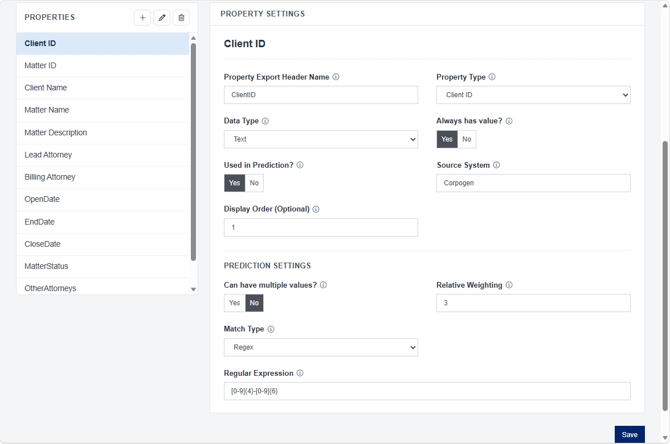
Note - Click the Save button to commit your updates to ActiveNav Cloud.
Matter Data Upload
Use the Business Rules > MatterID > Data Upload command to open the page that allows you to upload your matter reference data CSV file.
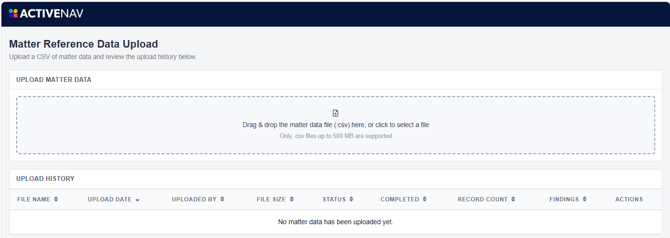
Once the file is uploaded, it is validated by the platform against the matter properties defined in Business Rules > MatterID > Properties. Errors and warnings are displayed in the Upload History list.
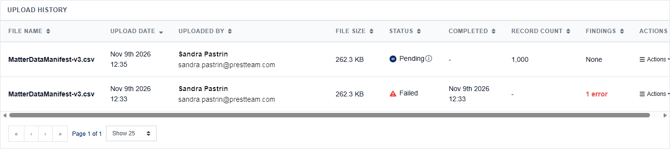
Note - Data files with errors cannot be processed by the platform. Data files with warnings can be processed. Use caution when proceeding with warnings.
Use the Actions menu to download the audit report for a CSV file that has failed validation or to delete the file from your tenant. After 14 days, the platform will automatically delete the uploaded matter data files that have have been processed successfully or failed validation. The grid entries remains visible.
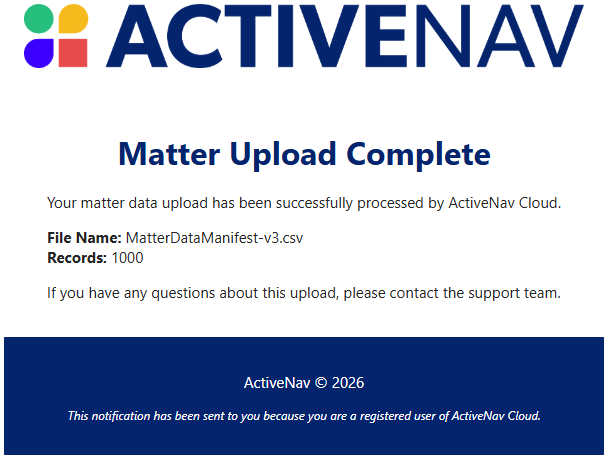
You cannot upload another matter data file until the current pending file has been processed or deleted. Once the file is successfully processed, the platform will send you a notification email message. The Matter Reference Data page will show a success status in the Upload History grid and the matter data will be available for use in your matter model.
Once your tenant is configured for MatterID, running a data source discovery set to Metadata Analysis or Content Analysis will trigger matter prediction for discovered files.