
Target Search Templates is a powerful feature designed to streamline and enhance your search experience. By configuring templates for commonly used searches, this feature ensures quick and efficient access to frequently sought information.

Whether you're conducting routine queries or complex searches, Target Search Templates save time and effort by providing a customizable and reusable framework tailored to your specific needs.
Creating a Template
On the Target Search page, switch to the Templates tab and click the Create Template button. The Create Search Template form will then open.
In the Template Name field, enter a unique value. The optional Description field can be populated if required.
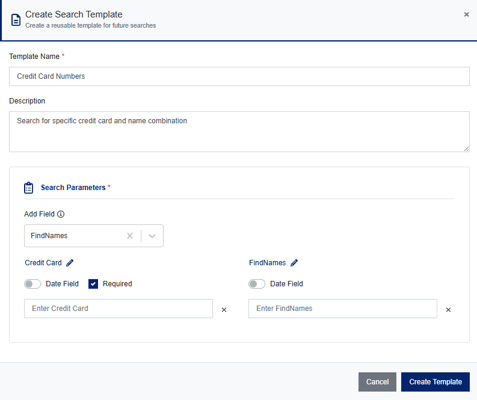
The Search Parameters of the template can then be defined by using the Add Field dropdown. Select one or more search terms from your list of searchable fields.
Note - For an explanation of searchable fields, please see the knowledgebase article Configuring Target Search Searchable Fields.
The process of adding search parameters is similar to that of a standard Target Search form with one key difference; the value field can either be pre-populated or left blank.
Once the template is complete, click Create Template to save the form.
Generating a Search From a Template
To create a search from an existing template, click the template's New Search button. The Create Search from Template form will then open.
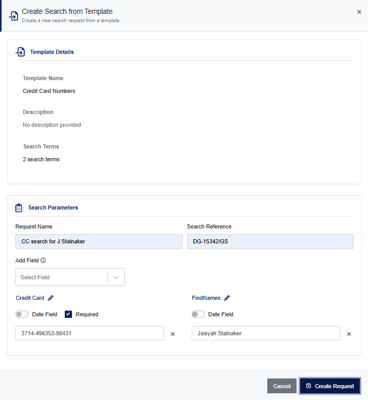
As in a standard Target Search, you must add a Request Name and Search Reference as they are mandatory fields. You will also need to populate your search parameters with correctly formatted values. You can also add additional search parameters if required.
To begin the search click the Create Request button.
Edit Options
If you need to amend a template, simply tag it and select Edit Template from the Actions menu.
Once in the Edit Template window, you can amend the template's Name and Description as well as adding, removing or amending Search Parameters.
Once editing is complete, click the Update Template button.
In addition to updating a template, the Edit Template window has the option to Save as New Template. This allows you to use the current template as the basis for another.
Modify the search parameters as required, then click the Save as New Template button.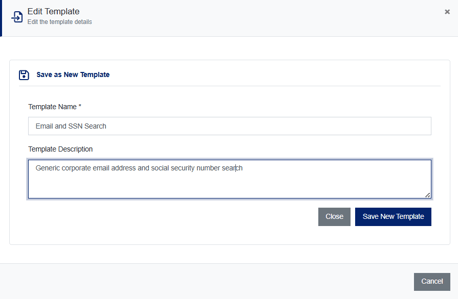 Provide a Name and optional Description in the form for the new template, then click Save New Template.
Data Encryption
Given the potential for sensitive Personally Identifiable Information (PII) to be included in templates, it is important to highlight that all search values are securely stored in an encrypted format. Access to this data is restricted to your tenant and is only available to users assigned the Search User role.