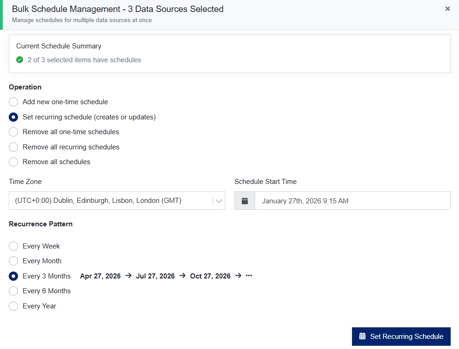
The ActiveNav Cloud Data Sources page has undergone a major update to provide a modern, clean user experience.
Discovery Management is located under the DISCOVERY > Discovery Management menu option on the top menu bar.
The main page displays all existing data sources including an array of filtering options and displays key metrics such as volume data and a summary of discovery statuses.
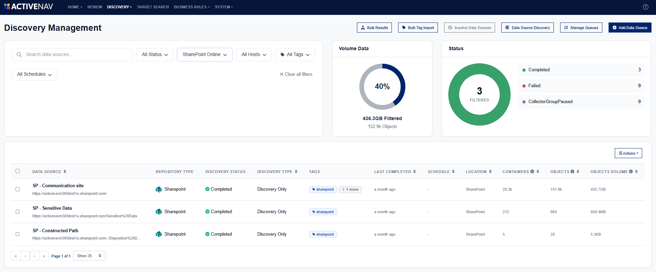
From Discovery Management, you can also access the other discovery management related pages:
Filtering
The top section of the Discovery Management contains the comprehensive data source filtering options.

These include:
- Data source name and path text search
- Discovery status
- Repository type
- Host name
- Tags
- Schedule
As you apply filters to the data sources, the Volume Data chart updates to show what percentage the current dataset represents of the total inventory. It also updates to display the size of the filtered dataset and the number of objects it contains.
The Status chart also refreshes to show the status distribution for the filtered dataset. It can act as a filter itself by selecting a segment of the pie chart or by clicking one of the status categories.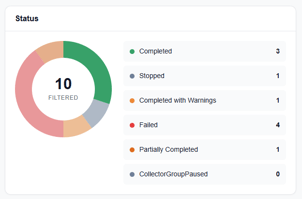
Definitions for each status are available in the Understanding Data Source Status article.
Data Source Actions
When you select one or more data sources, the Actions button displays a context-sensitive menu.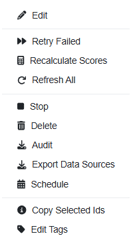
Certain options are available only when a single data source is selected. When multiple data sources are selected, additional bulk actions become available. For more information, refer to the Bulk Actions section below.
- Edit - The Edit option enables you to change the "Friendly Name" of the data source, and you can also enable/disable the "Inherit Credentials" setting.
- Retry Failed - Use the Retry option when previous runs of a data source have failed. The Retry option reattempts discovery on the failed containers.
- Recalculate Scores - This option will recalculate the scores for all business units that are assigned content from the associated data source. This action is required if you have modified a business unit or updated your scoring rules. This action will also rerun metadata classification calculations.
- Refresh All - Use the Refresh option to perform a refresh on all selected data sources. This action will also rerun metadata classification calculations.
- Stop - This option will stop an in-progress discovery activity.
- Delete - Use the Delete option to remove a data source from ActiveNav Cloud. This action will also delete the associated inventory.
- Audit - The Audit option downloads a file that includes failures in accessing containers during the initial discovery stage.
- Export Data Sources - Exports a CSV file containing the selected data sources. You can use filters and checkboxes to narrow the export. If no data sources are selected, the export will include all data sources.
- Schedule - This option opens the selected data source's current schedule. This allows you to refresh the data source at a date and time in the future. Use the Action menu to delete an entry from the list of scheduled discoveries.
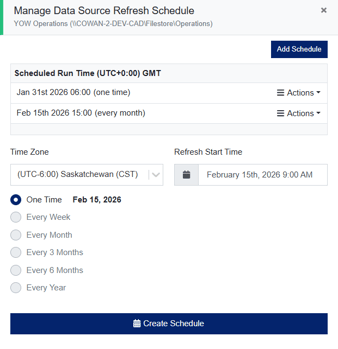 A One Time schedule is an event that has a single occurrence at the date and time chosen in the Refresh Start Time field.
Every Week will schedule the discovery on the same day (and time) as the date chosen in the Refresh Start Time.
For schedules that are set Every Month, Every 3 Months or Every 6 Months, the discovery will occur on the same date (and time) on the appropriate months.
Every Year schedules will occur on the same day of the year (at the same time).
You can define additional One Time events, but only one recurring schedule. - Copy Selected Ids - This copies the internal id of any tagged data sources. This can be used by ActiveNav Cloud support for troubleshooting.
- Edit Tags - This will open the Manage Tags window. Used with record checkboxes, this allows you to create, select, and remove tags from data sources.
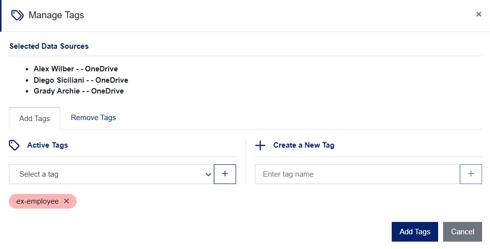 Tags provide a powerful, user-definable method for filtering data sources and up to 20 unique tags can be added to each data source.
For a more detailed explanation of data source tagging, please see this knowledge base article - Data Source Tags.
Bulk Actions
You can apply scheduling and discovery type updates to multiple data sources at once instead of configuring each individually. To do this, select the checkboxes for the data sources you want to change, then open the Actions menu.
The Actions menu will display updated bulk options for discovery type and schedule:
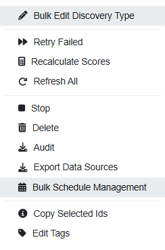
- Bulk Edit Discovery Type - Displayed if all checked records are of the Discovery Only discovery type. When selected, a window appears allowing you to change all checked records to the Feature Extraction discovery type.
- Bulk Schedule Management - Lets you create or update recurring schedules, or set one-time refreshes, for all selected data sources.