To create a new, single data source, please follow these steps:
1) Select Discovery Management from the DISCOVERY menu.
2) Click the Add Data Source button.
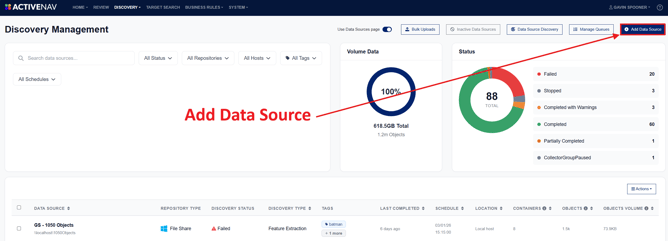
The Add Data Source wizard will open.
Step 1 - Select a Repository Type
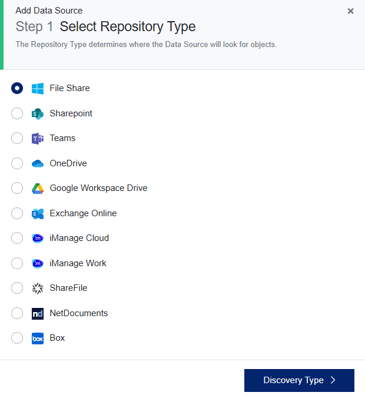
Note - For details on adding multiple Data Sources from a CSV, see Bulk Load Data Sources for more information.
Step 2 - Select a Discovery Type option. 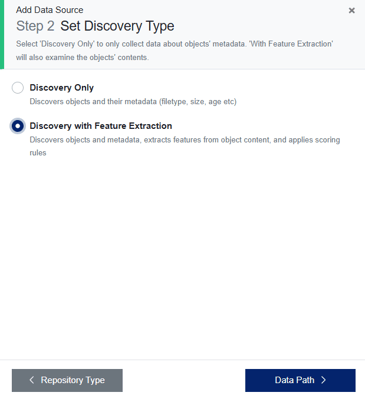 Step 3 - Enter a Data Source Friendly Name (a unique human-readable name for the data source).
Caution - There are some reserved characters that cannot be used in data source friendly names, including - < > : \ " / \ | ? *
Enter the Data Source Path.
This should be formatted per the examples in the dialogue box, for example:
\\RBT-543.prestteam.local\Sales
https://contoso.sharepoint.com/sites/examplesite
https://contoso-my.sharepoint.com/personal/rsimone_contoso_com
https://teams.microsoft.com/l/team/19%3an5i0LDFTXt7IwB-BzvV0GQ7lHz0HpduTTTSYoN9EF2hzc1%40thread.tacv2/conversations?groupId=03b158f9-0296-40e6-b657-36bc0r969a78&tenantId=bea54bf3-54ab-4196-8pcb-040ad25e469f
googledrive/shared/0APNJHCLK95upUk9PVA
exchange/alexander.knight@contoso.com
mywork.prestteam.com/mylibrary/bigclient
WARNING - Data source paths are case-sensitive, ensure that you have the correct format when entering your path for the Data Source as entering it incorrectly will cause a failure.
- Windows File Share: The path for a WFS data source is formatted in the same manner as the UNC path for the target. E.g., \\fileserver.prestteam.local\folder.
- SharePoint Online: The path for a SharePoint site is the URL for the site. E.g., https://prestteam.sharepoint.com/sites/finance. See Configuring a Data Source Path for SharePoint Online for more details.
- OneDrive: Paths for OneDrive locations are the URL for the user's OneDrive. E.g., https://prestteam-my.sharepoint.com/personal/alexk_prestteam_com. See Configuring a Data Source Path for SharePoint Online for more information.
- Teams: See Retrieving a Teams Team or Channel URL(s) for a Data Source for further information on obtaining Teams URLs for your Data Source Path.
- Exchange: See Configuring the Data Source Path for an Exchange Collector for further information.
- Google Workspace Drive: See Configuring the Data Source Path for a Google Workspace Drive Collector for further information.
- iManage Work and iManage Cloud: See Configuring the Data Source Path for iManage for further information.
- ShareFile: See Configuring a Data Source Path for ShareFile for further information.
- NetDocuments: See Configuring Data Sources for NetDocuments for more information.
- Box: See Configuring Data Source Paths for Box for more information
Step 4 - If the Data Source Path is for a new host, you will see a Create a Host dialogue after adding the path. This window establishes a new host record for the given system and will only be displayed the first time you use any given host.
Add the new host's relevant details, a Host Friendly Name, and Host Description, then click Location.
Step 5 - From the drop-down list, select a Geographic Location. Previously configured locations will appear and, when selected, will automatically populate the Location Name, Description, and Address fields. To use a new location, choose the option to add a new location and manually enter the values for these fields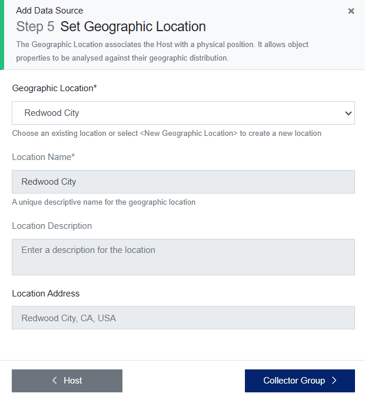
Step 6 - Select the correct Collector Group from the drop-down list (see Collector and Collector Groups Overview for further information), then click Credentials.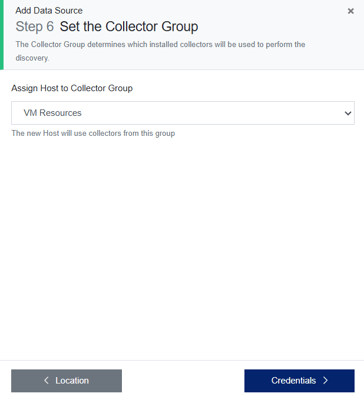
Step 7 - Select the credentials to connect to the host from the drop-down list (These should have already been configured prior to adding the host, see Credentials for further information), then click Business Unit.
Step 8 - Optionally assign the data source to an existing business unit. Please see How to Create Business Units for further information
Step 9 - Add data source tags to help categorize the data source if required. To find out more, please see the knowledgebase article Data Source Tags.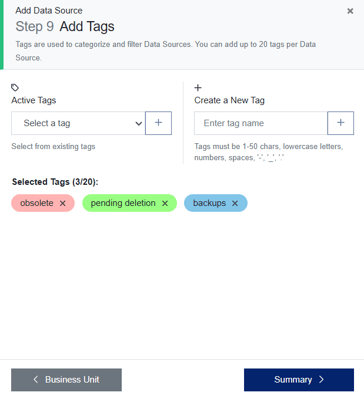
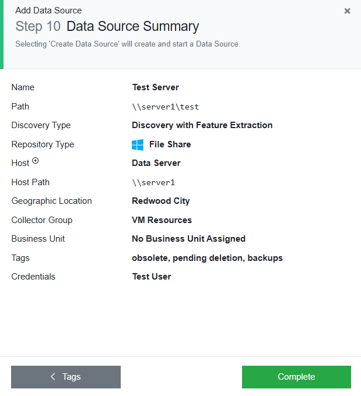
Step 10 - Review the summary screen and click Complete.